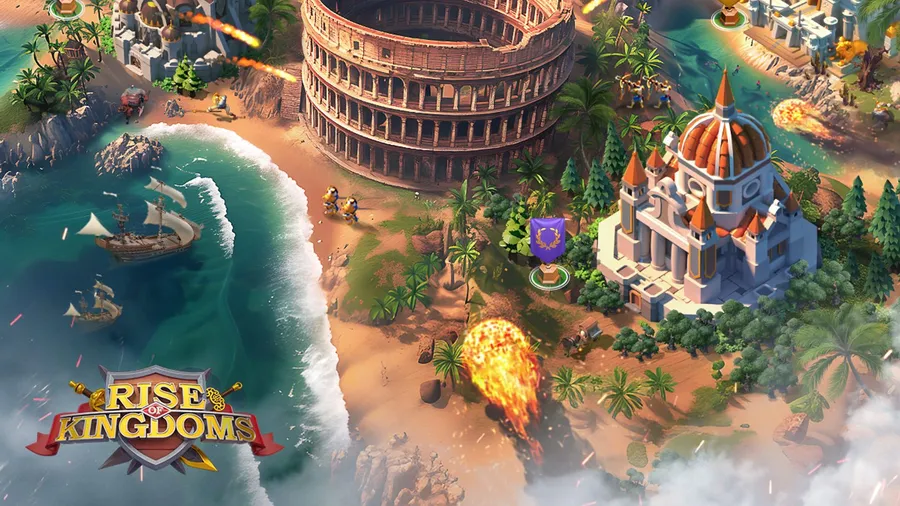
Rise of Kingdoms is free to play on PC through Lilith Games’ official Windows client, so you don’t need an Android emulator. Download the client, sign in with your existing account if you play on mobile, and let the launcher keep the game updated. This guide covers each step and the fixes for common install problems.
What is Rise of Kingdoms?
Rise of Kingdoms is a real-time strategy MMO from Lilith Games. You pick one of 15 historical civilizations and grow it from a lone clan into an empire. Each civilization has its own architecture, unique units and special advantages.
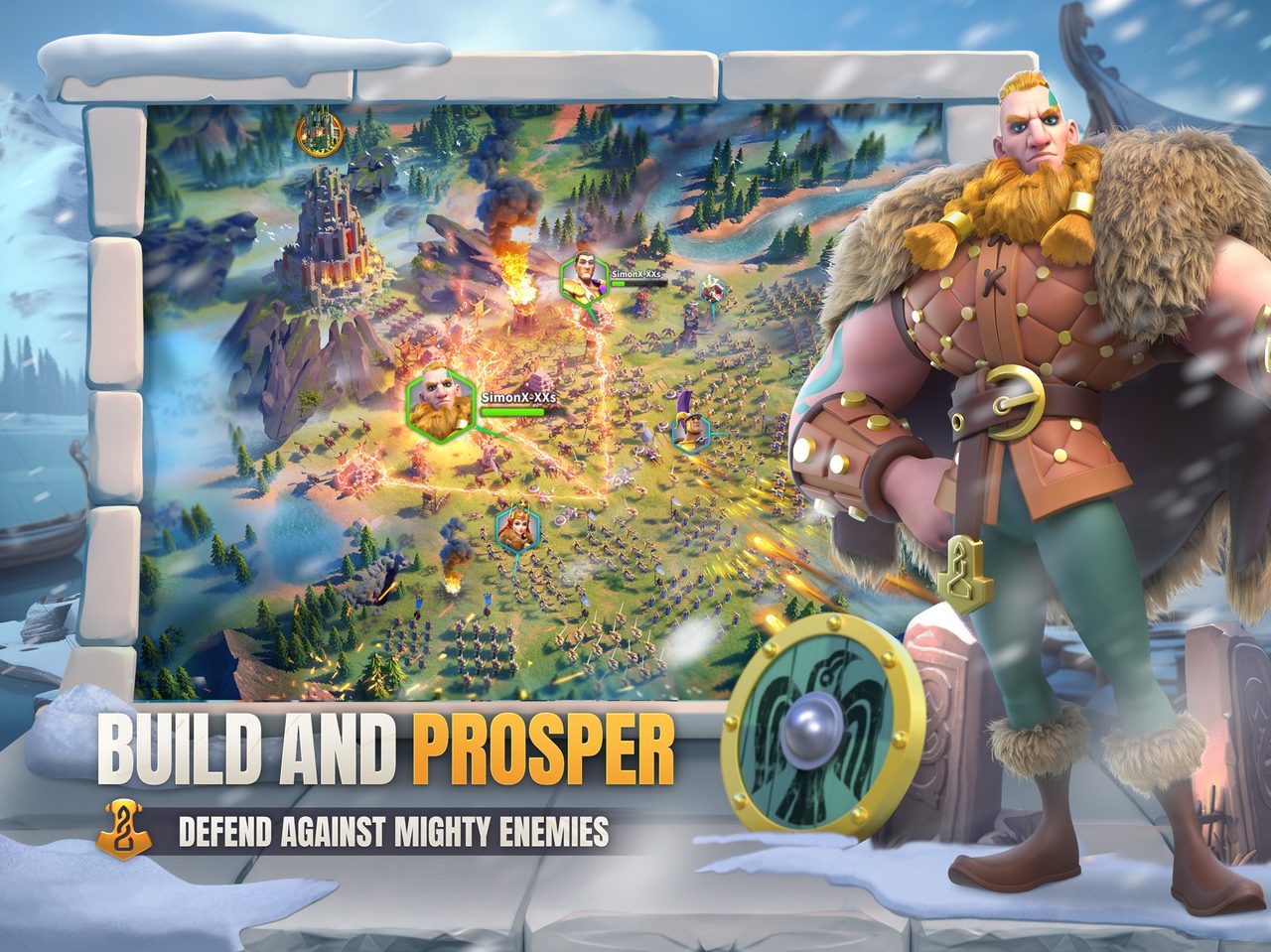
What sets it apart from most city-builders is the map. Battles happen in real time on a world map shared by tens of thousands of players. Anyone can join or leave a fight while it’s happening, so a nearby ally can send troops to help mid-battle. Historical commanders such as Julius Caesar and Cao Cao lead your armies.
Why play on PC instead of mobile?
The official site highlights three PC advantages:
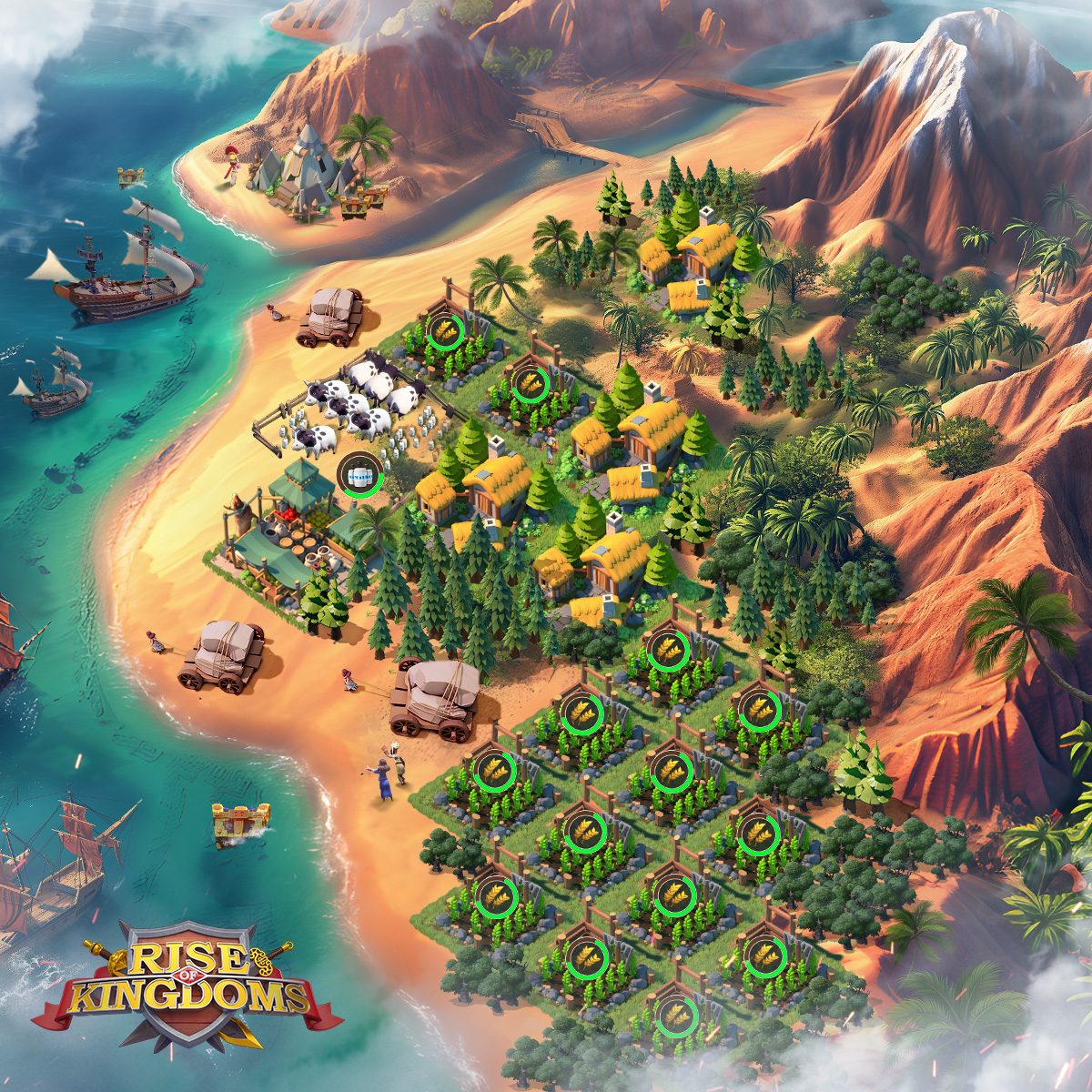
- Scaling. The PC version adapts to most computer models and screen sizes, and a big screen shows much more of the map.
- Shortcuts. Keyboard shortcuts let you open common panels and act faster than tapping.
- Background updates. The launcher downloads updates in the background, so you aren’t waiting on a patch when you want to play.
There’s no Steam listing with a formal spec sheet. Lilith’s official download page lists current requirements. If you’re unsure what your PC has, our guide to checking a game’s system requirements shows how to look it up.
How to download Rise of Kingdoms on PC
- Bind your mobile account first. If you already play on a phone, bind your account in the game’s settings so you can sign in on PC.
- Open the official download. Use the button below. It goes through our affiliate partner to Lilith Games’ official PC download.
- Install the launcher. Run the installer and let the launcher download the game.
- Sign in. Use your bound account to load your existing kingdom, or start fresh and choose a civilization.
- Leave the launcher installed. It handles updates in the background, so keep it rather than deleting it after install.
Choosing your first civilization
Your civilization sets your starting commander and a set of bonuses. The game lets you change civilization later with an in-game item, so the first pick isn’t permanent.
- Pick for your play style. Some civilizations favor infantry, some cavalry and some archers, and their bonuses lean toward attack, defense or economy.
- Join an alliance early. In real-time map battles, alliance members reinforce each other. A solo city is an easy target.
- Keep your builders busy. Queue upgrades before you log off, since construction keeps running while you’re away.
Should you play Rise of Kingdoms on PC or on mobile?
You don’t have to choose for good. Your bound account holds your city, commanders and kingdom membership, so the same save opens on PC and phone. Many players use both: the phone for quick check-ins, and the PC for longer sessions.
The PC version earns its place for the longer sessions. A larger screen shows more at once, which helps with managing marches and watching the world map during big fights. A mouse is more precise than a fingertip, and your phone’s battery and heat stop being a factor. The trade-off is that the PC client is a separate install that needs its own updates, so let it update before a planned session rather than at the start of one.
| PC | Mobile | |
|---|---|---|
| Screen | Large, more on screen at once | Small, portable |
| Controls | Mouse and keyboard | Touch |
| Battery and heat | Not a factor | Limits long sessions |
| Best for | Long sessions | Quick check-ins |
If Rise of Kingdoms won’t install or launch
Try these in the order worth trying them. Stop as soon as the problem is fixed.
- Restart the launcher. A stalled update usually resumes after a restart.
- Repair or reinstall the client. Your kingdom lives on your account, not on your PC, so reinstalling loses nothing.
- Update your graphics driver. It’s the usual fix when the client crashes on its loading screen.
- Check your connection. The game is always online. A VPN or strict firewall can stop it from reaching Lilith’s servers.
For anything beyond that, our PC game troubleshooting guide covers launch errors and crashes in more depth.
Ready to rule
Install the official client, sign in and your city is waiting on the big screen.
This download link is an affiliate link — see our Affiliate Disclosure for how that works. It doesn’t change anything about your download or account.