Genshin Impact is free on PC and only comes from official sources: HoYoverse’s launcher, HoYoPlay. Install the launcher, sign in with your HoYoverse account and download the game to an SSD. This guide covers each step, how to keep your mobile progress and what to do when the install stalls.
Don’t use third-party installers, cracked clients or unofficial “unlockers”. They risk malware and account bans. Problems after installation are covered in our complete guide to PC game problems.
What is Genshin Impact?
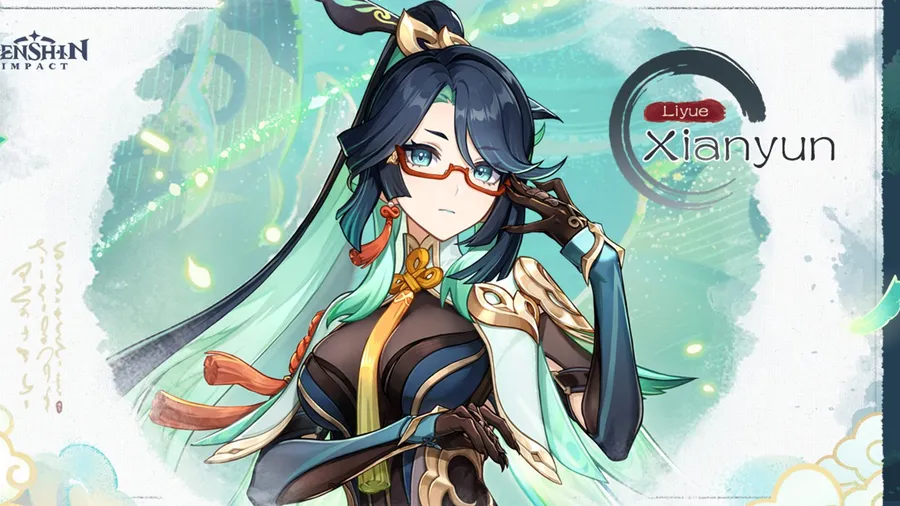
Genshin Impact is an open-world action RPG from HoYoverse, set in the world of Teyvat. You arrive from another world, lose your sibling to an unknown god and travel across Teyvat’s nations looking for answers from The Seven, the gods of the elements.
Combat is built on seven elements: Anemo, Electro, Hydro, Pyro, Cryo, Dendro and Geo. You switch between four party members and combine elements for reactions. One example is Pyro on a Hydro-soaked enemy, which causes Vaporize.
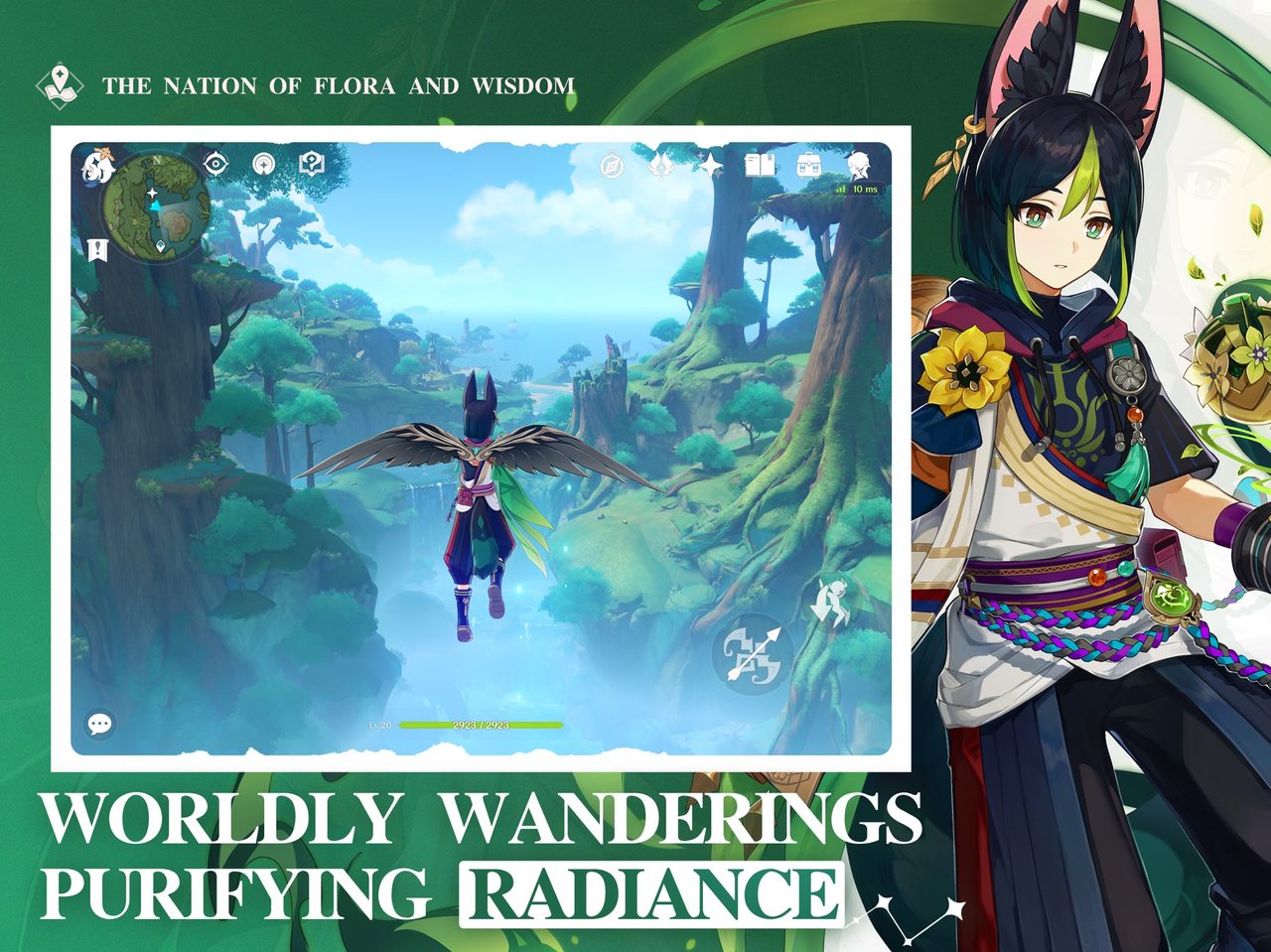
How to install Genshin Impact on PC
- Download the official launcher. Use the button below. It goes through our affiliate partner to HoYoverse’s official PC download. Avoid other download sites, because search results sometimes surface fake download pages.
- Install HoYoPlay and sign in. Run the installer, open HoYoPlay and sign in with a HoYoverse account, or create one. If you’ve played on mobile or console, use that same account to keep your progress.
- Install the game to an SSD. Select Genshin Impact in HoYoPlay and click Install. Choose an SSD if you have one, because loading times and fast travel are noticeably quicker.
- Pick only the voice packs you need. Each extra voice-over language adds a large download. You can add or remove packs later from the launcher’s settings.
- Launch and configure. On first launch, open Settings → Graphics. Set your resolution and quality before you leave the tutorial area.
How much space and hardware does Genshin Impact need?
The game grows with every version update, so the requirements change over time. HoYoverse lists the current PC specs on the official download page, and the launcher checks free space before it starts downloading.
In practice, check three things before you start. Have plenty of free SSD space, because each update needs room to unpack. Have a 64-bit version of Windows 10 or 11. And use a graphics driver from this year. Our guide to checking a game’s system requirements shows how to read your own specs.
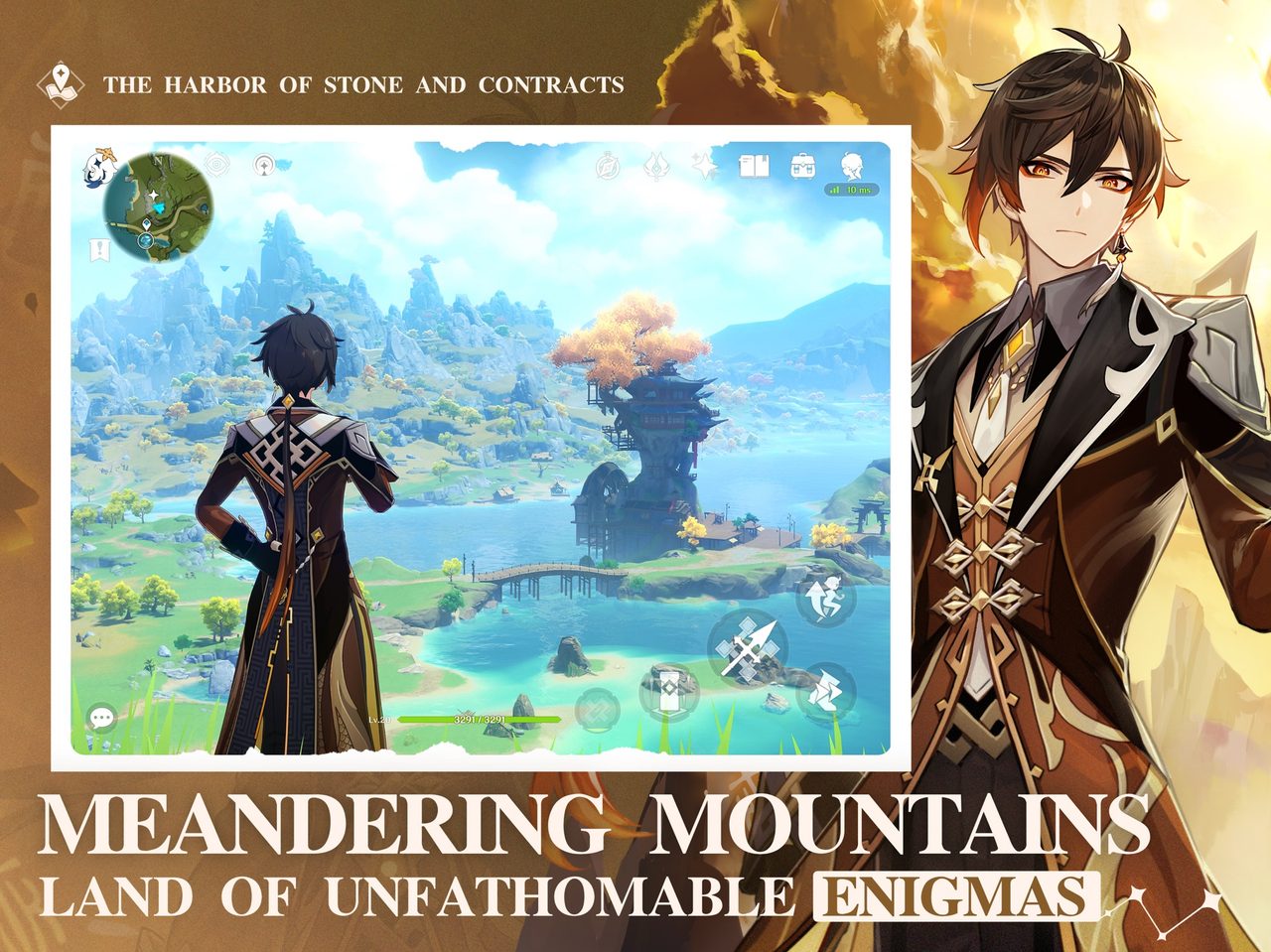
Settings worth changing on PC
- Frame rate. Genshin Impact defaults to 60 FPS on PC. Leave it there unless your PC holds a higher cap without dips.
- Display mode. Borderless windowed is usually the smoothest choice for switching between the game and other apps.
- Render resolution. On a weaker GPU, lower render resolution before you turn down everything else. It costs the most GPU time.
Should you play Genshin Impact on PC or on mobile?
You don’t have to choose for good. Your HoYoverse account holds your characters, items and story progress, so the same save opens on PC, phone and PlayStation. Many players use both: the phone for quick check-ins, and the PC for longer sessions.
The PC version earns its place for the longer sessions. A larger screen shows more at once, which helps with exploring Teyvat and lining up elemental reactions. A mouse is more precise than a fingertip, and your phone’s battery and heat stop being a factor. The trade-off is that the PC client is a separate install that needs its own updates, so let it update before a planned session rather than at the start of one.
| Component | PC | Mobile |
|---|---|---|
| Screen | Large, more on screen at once | Small, portable |
| Controls | Mouse and keyboard | Touch |
| Battery and heat | Not a factor | Limits long sessions |
| Best for | Long sessions | Quick check-ins |
If the install fails or stalls
Try these in the order worth trying them. Stop as soon as the problem is fixed.
- Repair the game files. In HoYoPlay, open the menu next to the Start Game button and choose the repair option. It re-checks every file and replaces damaged ones without a full re-download.
- Check free space. An update that runs out of space mid-install leaves broken files behind. Free space, then repair again.
- Pause and resume the download. A stalled download usually restarts cleanly. If it doesn’t, restart HoYoPlay.
- Update your GPU driver. Crashes on the loading screen after an update usually point to the driver.
Ready to play
Once HoYoPlay finishes, you’re a few minutes from the opening cutscene. Sign in with the account you already use if you play on mobile, and your progress comes with you.
This download link is an affiliate link — see our Affiliate Disclosure for how that works. It doesn’t change anything about your download or account.