“Overheating” gets blamed for a lot of PC problems that are actually something else, and genuinely misses the real thing often enough too. Here’s how to actually confirm it instead of guessing from vibes.
Heat is one cause of falling frame rates, and the rest are in our guide to diagnosing slow PC game performance.
The real warning signs
- Sudden performance drops mid-session (thermal throttling) — the game runs fine for a while, then frame rate drops noticeably and doesn’t recover until you stop playing and let the system cool.
- Random shutdowns or restarts under load, but not at idle — this is a stronger, more urgent sign than throttling, since it means a safety cutoff triggered.
- Fans running at full, constant speed even during light use — a sign the system is struggling to keep up with heat it shouldn’t be generating in the first place, often pointing to a dust or airflow issue rather than the workload itself.
- A case that’s hot to the touch on the outside, particularly around the GPU area — not conclusive on its own, but worth following up with real numbers.
Confirm it with actual numbers, not guessing
Vibes aren’t reliable here — the fix depends entirely on what your temperatures actually are. See our guide on monitoring CPU and GPU temperature while gaming for free tools (MSI Afterburner, HWMonitor) that show live numbers, plus what counts as a genuinely high temperature versus just “running warm.”
Check Your Real TemperaturesWhat actually fixes it
- Clean out dust — this is the most common cause by a wide margin. Compressed air on fans, heatsinks and dust filters takes ten minutes and resolves a surprising share of “my PC suddenly runs hotter than it used to” cases, especially on systems more than a year or two old that haven’t been opened.
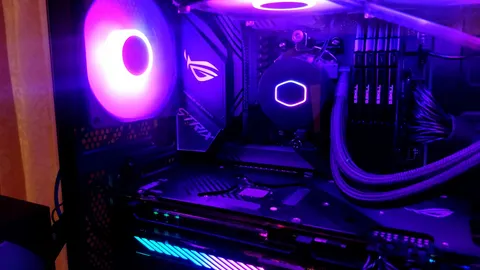
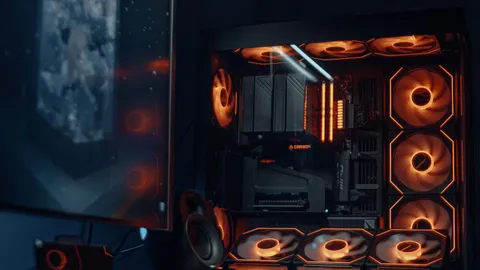
- Check case airflow, not just individual coolers. A case with only exhaust fans and no intake (or vice versa) creates poor pressure balance that traps heat regardless of how good your CPU cooler is.
- Reapply thermal paste on older systems. Factory-applied paste, especially on pre-builts, isn’t always generous, and any paste degrades in effectiveness after a few years.
- Confirm your case has room to breathe. A PC pushed against a wall or inside an enclosed desk cubby with no ventilation will run hotter than the exact same hardware in open air, regardless of internal cooling.
- Undervolting is worth considering for persistent GPU heat. Reducing voltage slightly while keeping clock speeds close to stock can lower temperatures meaningfully with minimal performance loss — a more advanced step, but a real option if the basics don’t fully solve it.
What doesn’t reliably fix it
Buying more case fans without fixing an existing airflow imbalance (wrong intake/exhaust ratio) often doesn’t help much — direction and balance matter more than raw fan count. Similarly, “cooling pads” for laptops offer a marginal benefit at best since they cool the case exterior rather than addressing internal component temperatures directly.
When it’s a hardware problem, not a maintenance one
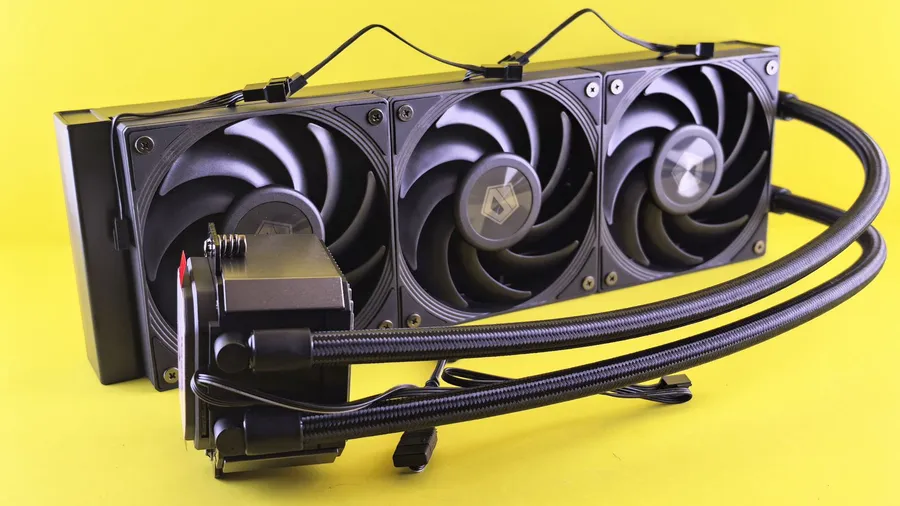
If temperatures stay high immediately after a full clean, reseated cooler, and fresh thermal paste, the cooler itself may simply be undersized for the CPU generating the heat — a common outcome when a system is upgraded to a more powerful CPU without upgrading the cooling that came with the original build.