High ping and packet loss feel similar in-game — both show up as lag — but they’re different problems with different fixes. Getting the diagnosis right matters before you start changing settings.
Network lag is a separate problem from low frame rate, which is covered in our guide to FPS and smoothness on PC.
Ping vs. packet loss: what’s actually happening
- High ping means your connection to the game server is consistently slow — every action takes longer to register. It’s usually steady and predictable once you’re aware of it.
- Packet loss means data is being dropped entirely somewhere along the way, causing rubber-banding, sudden freezes, or teleporting characters. This is often the more disruptive of the two, even at seemingly low percentages.
You can check both with a command prompt: open Command Prompt and run ping -t <server address or google.com> to watch live ping and spot dropped packets (shown as “Request timed out”). Let it run for a minute or two during normal use to catch intermittent issues a single ping won’t show.
The single biggest fix: wired over WiFi
If you’re on WiFi and experiencing inconsistent spikes rather than a steadily high number, switching to a wired Ethernet connection is the most reliable fix available. WiFi is inherently more prone to interference, signal drop-off with distance, and competition from other devices on the network — all of which show up as the packet loss and ping spikes that feel worst in fast-paced games.
If you’re already wired and still seeing issues
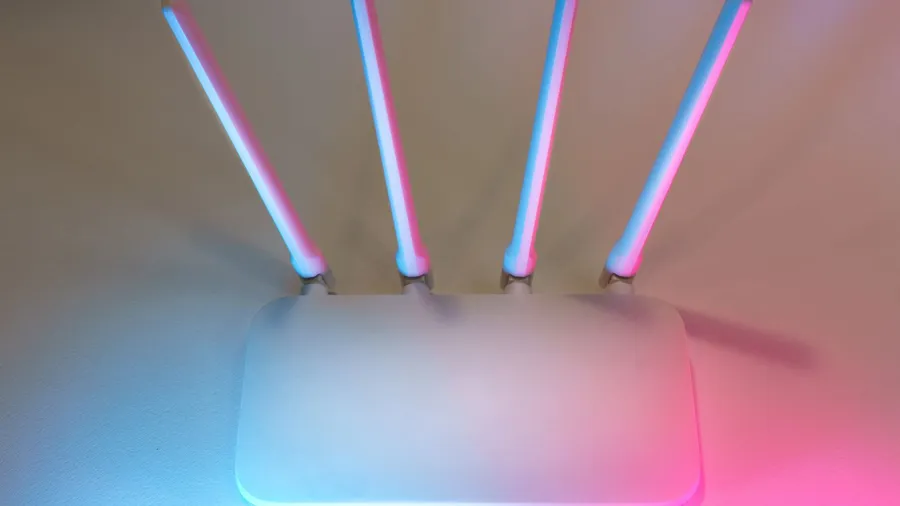
- Restart your router and modem. It sounds obvious, but router memory leaks and stale connections build up over weeks of uptime and are a genuinely common cause of gradually worsening latency.
- Check for bandwidth competition on your network. A household member streaming 4K video, a large game download or Windows Update running in the background, or a cloud backup syncing can all eat bandwidth and cause packet loss under load, even if your overall internet plan is fast enough.
- Try a different DNS server. Your ISP’s default DNS isn’t always the fastest option — public alternatives are widely available and free to switch to in your network adapter settings, and it’s a zero-risk change to test.
- Check for outdated router firmware. Manufacturers regularly patch stability issues; an old firmware version on an otherwise fine router can be the actual cause of intermittent drops.
What’s outside your control
Server-side congestion, the physical distance between you and the game server, and your ISP’s routing to that server are all real factors you can’t fix locally. If ping is high specifically to one game’s servers but fine everywhere else, that’s a strong sign the issue sits outside your home network entirely — worth confirming with the game’s official server status page before spending more time troubleshooting your own setup.
When it’s worth contacting your ISP
If packet loss shows up consistently in a ping -t test even to a stable target like a major DNS server (not just one game), and persists after ruling out the steps above, that’s a legitimate reason to contact your ISP — bring the specific numbers from your test, since it gives their support team something concrete to investigate rather than a vague “my internet feels laggy.”