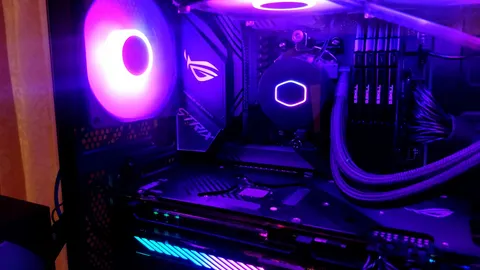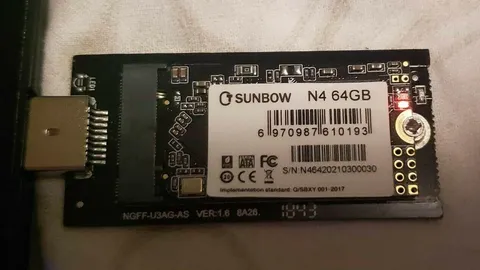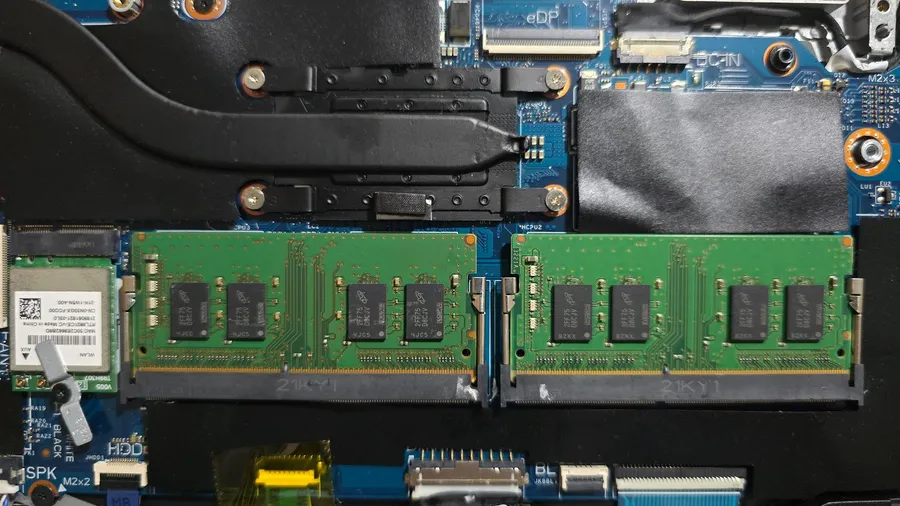
RAM is sold by its rated speed, such as DDR4-3600 or DDR5-6000. But when you first build or buy a PC, the memory starts at a slower, standard speed that every board and processor can run. Intel’s own guidance notes that XMP memory first boots at the default JEDEC settings. Unless someone turned on the memory profile, your RAM may never have run at the speed you paid for.
This is one step in our process for tuning a gaming PC, and it’s one of the easiest.
Step 1: Check the speed your RAM runs at now
- Press Ctrl + Shift + Esc to open Task Manager.
- Go to the Performance tab and select Memory.
- Look at Speed.
Compare it with the rating on the box, the label on the stick, or your order. If Task Manager shows something like 4800 MT/s for a DDR5-6000 kit, or 2133 or 2666 MT/s for a DDR4-3200 or 3600 kit, the profile is off.
Step 2: Check your hardware supports it
- Intel: Intel says its Core Ultra and K-series desktop processors support XMP on motherboards that support it, and that Z- and B-series chipsets have XMP memory overclocking. Many H-series boards limit memory speed.
- AMD: EXPO is AMD’s profile format for DDR5 on AM5 (Ryzen 7000 and newer). On older AM4 boards with DDR4, the same job is done by loading the kit’s XMP profile, which board makers label DOCP, A-XMP or XMP.
- Laptops and prebuilt PCs: most laptops and many prebuilt desktops don’t offer a profile setting at all. If you can’t find it in the BIOS, that’s usually why.
Your motherboard maker’s website also has a memory support list (QVL) for your exact board, showing kits that were tested at their rated speed.
Step 3: Turn on the profile in the BIOS
- Restart the PC and press the BIOS key as it starts. It’s usually Delete or F2, and the startup screen often shows it.
- Many boards open in a simple “EZ” mode. Look for the memory profile setting there first. It’s often on the main screen.
- If it’s not there, switch to advanced mode (often F7) and look in the overclocking, tweaker or AI Tweaker section for XMP, EXPO, DOCP or A-XMP.
- Select Profile 1 (or the profile matching your kit’s rated speed). Some kits offer two profiles, as Intel describes, with the second slightly slower or tuned differently.
- Save and exit, usually with F10.
The first boot after the change can take longer than usual while the board trains the memory, and the screen may stay black for a minute. Give it time before you touch anything.
Step 4: Check it worked
Back in Windows, open Task Manager again. Speed should now match the rated speed of the kit. Play a few games or run a stress test to make sure the PC is stable.
If the PC won’t boot or crashes
Not every processor’s memory controller can run every kit at its rated speed, especially with four sticks or very fast DDR5.
- Wait. Many boards try several times and fall back to safe settings automatically after a failed boot.
- Clear the BIOS settings if it doesn’t recover. Most boards have a clear CMOS button on the back panel or a pair of pins on the board. The motherboard manual shows where. This resets the BIOS to defaults, including the memory profile.
- Update the BIOS. Board makers regularly improve memory compatibility in BIOS updates, particularly for DDR5.
- Try the second profile or a slightly lower speed. Running a little below the rating is still much faster than the default.
- Check the sticks are in the right slots. With two sticks, the manual names the slots to use (often A2 and B2).
If games crash or the PC shows blue screens after turning on the profile, see our guide to fixing games that crash on startup and test with the profile off before you change anything else.
Enable Resizable BAR Next Check Your PC Specs