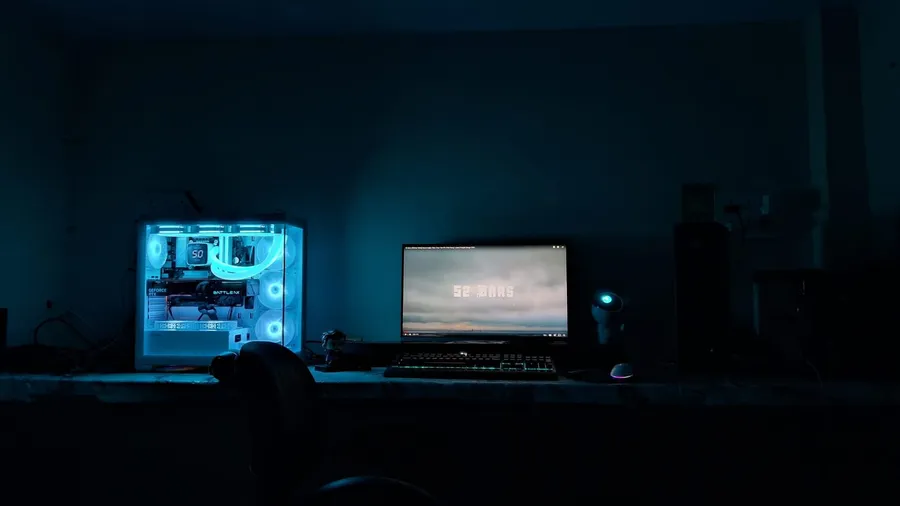
The best 1440p gaming monitor for most players is a 27-inch IPS screen running at 180Hz or more. It gives you a sharper picture than 1080p, high frame rates on a mid-range graphics card, and no burn-in worries, for a modest price.
Spend more and a 360Hz QD-OLED panel is the biggest picture upgrade you can buy: true blacks, near-instant pixel response and vivid colour. This guide compares two of each and explains which suits the way you play.
As an Amazon Associate, Gamesness earns from qualifying purchases. We have not bench-tested these monitors ourselves. The picks are based on the manufacturers’ published specifications and independent reviews, and each link goes to the Amazon listing we checked for that model.
1440p gaming monitors compared
| Monitor | Panel | Refresh rate | Response time (GtG) | Adaptive sync | Best for |
|---|---|---|---|---|---|
| LG 27GS75Q-B | 27” IPS | 180Hz (200Hz overclock) | 1ms | G-Sync Compatible, FreeSync | Best value |
| LG 27GR83Q-B | 27” IPS | 240Hz | 1ms | G-Sync Compatible, FreeSync Premium | Fast IPS for shooters |
| Alienware AW2725DF | 26.7” QD-OLED | 360Hz | 0.03ms | FreeSync Premium Pro, Adaptive-Sync | Best OLED |
| Samsung Odyssey OLED G6 (G60SD) | 27” QD-OLED | 360Hz | 0.03ms | FreeSync Premium Pro | OLED with burn-in protections |
Specifications are the manufacturers’ figures. All four run at 2560 x 1440. Check that the listing shows the exact model number before you order, because monitor names are reused across versions.
The picks
LG 27GS75Q-B: best value 1440p monitor
The 27GS75Q-B is a 27-inch IPS monitor at 180Hz, with an overclock to 200Hz. LG rates it at 1ms grey-to-grey and up to 99% of the sRGB colour range, and it is validated by NVIDIA as G-Sync Compatible as well as supporting AMD FreeSync.
The stand adjusts for height, tilt and pivot, which many budget monitors skip, and it has two HDMI ports and one DisplayPort. It accepts HDR10 signals but has no VESA DisplayHDR certification, so don’t buy it for HDR. Buy it for a sharp, fast, fuss-free screen.
Check price on AmazonLG 27GR83Q-B: best fast IPS
The 27GR83Q-B steps up to 240Hz, which matters if you play competitive shooters and your PC can reach those frame rates. LG lists it at 1ms GtG, 95% of the DCI-P3 colour range and VESA DisplayHDR 400.
It has HDMI 2.1 as well as DisplayPort 1.4, and LG states that both reach 240Hz. That makes it a good fit if you also connect a PS5 or Xbox Series X, which use HDMI. It is still an IPS panel, so blacks look grey in a dark room, the usual trade-off against OLED.
Check price on AmazonAlienware AW2725DF: best 1440p OLED
The AW2725DF uses a 26.7-inch QD-OLED panel at 360Hz. Each pixel makes its own light, so blacks are truly black and the contrast is effectively unlimited. Dell rates the response time at 0.03ms GtG, and the panel is certified to VESA DisplayHDR True Black 400.
At launch, Dell backed the panel with a three-year warranty that covers OLED burn-in. Check that it still applies on the listing you buy from. The 360Hz refresh rate needs a powerful graphics card to use fully, but the motion clarity is excellent even at lower frame rates.
Check price on AmazonSamsung Odyssey OLED G6 (G60SD): best OLED alternative
Samsung’s G60SD is also a 27-inch QD-OLED at 360Hz and 0.03ms, with AMD FreeSync Premium Pro, two HDMI 2.1 ports and DisplayPort. It has a glare-free matte coating, which helps in rooms with windows or lamps behind you.
Samsung focuses on burn-in protection here. A pulsating heat pipe spreads heat away from the panel, and the monitor dims static logos and taskbars automatically. RTINGS found its blacks look deep in a dark room but rise in a bright one, which is common to QD-OLED panels.
Check price on AmazonIPS or OLED: which should you buy?
Buy IPS if you play in a bright room, leave static windows open for hours (work, browsers, Discord), or want to spend less. IPS panels have no burn-in risk and are bright enough for daytime gaming.
Buy OLED if you play mostly in a dim room and want the best picture. Black levels, HDR and motion clarity are in a different class. Hide the taskbar and use the screen saver to keep burn-in risk low.
Our guide to IPS, VA and OLED panels explains the differences in detail.
How to choose a 1440p gaming monitor
Match the refresh rate to your graphics card. A 360Hz monitor only shows 360 frames per second if your PC produces them. Use our FPS calculator to estimate what your hardware reaches at 1440p, then pick a refresh rate a little above that.
Check the ports. Use DisplayPort for a PC. HDMI 2.1 matters only if you connect a current console and want 120Hz at 1440p.
Look at the stand. A stand that adjusts for height saves you buying a monitor arm. If you plan to use one anyway, check for a 100 x 100mm VESA mount.
Check the fit on your desk. A 27-inch 16:9 monitor is about 60cm wide. Our monitor size calculator shows how sharp a screen will look and how much of your view it fills from where you sit, and monitor height and distance for gaming covers placement.
Turn on adaptive sync. G-Sync Compatible and FreeSync stop tearing without the input lag of VSync. Our VSync vs G-Sync vs FreeSync guide explains how to set them up.
For the rest of your desk, see our gaming gear buying guide.