The right gaming gear is the gear that fits you: your hands, your desk, your games and your PC. Most spec sheets don’t help with that. A mouse with a 44,000 DPI sensor is no better than one with 12,000 if neither fits your grip, and a 360Hz monitor does nothing on a PC that renders 70 frames per second.
This guide covers every major piece of gaming gear in the order most people should buy it. For each one it explains which specs matter, which ones to ignore and how to match the choice to how you play.
Where should you spend first?
Spend first on whatever currently limits you most. For most PC players, that order is monitor, mouse, headset, then keyboard.
The monitor comes first because it caps what you see. A fast graphics card on a 60Hz screen shows at most 60 frames a second. The mouse comes next because it is your aim, and a poor fit affects every match. The keyboard comes last because almost any keyboard registers presses well enough for gaming.
| Budget for gear | Monitor | Mouse and pad | Headset | Keyboard |
|---|---|---|---|---|
| Tight | 1080p 144Hz or higher | Well-known budget wireless or wired mouse, large cloth pad | Wired headset | Keep your current one |
| Mid-range | 1440p 144–180Hz IPS | Lightweight mouse that fits your grip | Comfortable wired or 2.4GHz wireless headset | Hot-swappable mechanical |
| High | 1440p 240Hz+ or OLED | Flagship wireless mouse | Wireless headset or headphones plus a USB mic | Premium mechanical in your preferred layout |
Treat this as a starting point, not a rule. If your current mouse already fits well, skip it and put the money elsewhere.
Monitor: refresh rate, resolution and panel type
A gaming monitor is defined by three specs that interact with your graphics card: refresh rate, resolution and panel type. Choose them together.
Refresh rate is how many times per second the screen can show a new image, in hertz. A 144Hz monitor can show 144 frames per second, which makes motion and tracking noticeably smoother than 60Hz. Higher rates only help if your PC can produce the frames.
Resolution is the number of pixels. 1080p is cheap to drive and fine at 24 inches. 1440p is the sweet spot at 27 inches for most players. 4K looks sharpest but needs a powerful graphics card for high frame rates.
Panel type decides contrast, colour and motion clarity:
| Panel | Strengths | Weaknesses | Suits |
|---|---|---|---|
| IPS | Accurate colour, wide viewing angles, fast response | Weaker contrast, some glow in dark scenes | Most players |
| VA | High contrast, deep blacks | Slower dark transitions can smear | Single-player and dark games |
| OLED | Near-instant response, perfect blacks | Higher price, burn-in risk with static images | High-end setups with varied use |
Match the monitor to your graphics card. A mid-range card is a good match for 1440p at 144 to 180Hz. Pushing 240Hz or 4K needs a high-end card or lower settings.
Variable refresh rate matters almost as much as the headline rate. VESA added the Adaptive-Sync capability to the DisplayPort standard, and G-Sync and FreeSync build on the same idea: the monitor refreshes when a frame is ready, which removes tearing without the delay of VSync. Make sure any monitor you buy supports it with your graphics card.
Size and position matter too. OSHA’s computer workstation guidance gives a preferred viewing distance of 20 to 40 inches (50 to 100cm), with the top of the screen at or slightly below eye level. A 27-inch monitor fits that distance on most desks. A 32-inch or larger one needs a deeper desk.
Mouse: shape, weight, sensor and connection
The mouse is the piece of gear that affects aim most directly, and shape decides more than any spec. A mouse that fits your hand and grip is easier to control. One that doesn’t will tire your hand however good its sensor is.
Grip and shape. There are three common grips. Palm grip rests the whole hand on the mouse and suits ergonomic, right-handed shapes. Claw grip arches the fingers and suits symmetrical shapes with a raised back. Fingertip grip touches the mouse only with the fingertips and suits small, light mice.
Size. Measure your hand from the wrist crease to the tip of the middle finger. Under about 17cm is small, 17–19cm is medium and above that is large. Compare that with the mouse’s length and width on the spec sheet.
Weight. Most current esports mice weigh 50 to 65 grams, which makes fast flicks easier. Many players aim well with mice of 80 to 100 grams, so weight is a preference rather than a requirement.
Sensor and DPI. DPI is a measure of how far the cursor moves for each inch the mouse travels. Most players use 400 to 1600 DPI. Every reputable gaming mouse sensor tracks accurately at those settings, so maximum DPI figures in the tens of thousands are marketing. Logitech’s G305, for example, has a 12,000 DPI HERO sensor, which is more than any player uses.
Connection. A 2.4GHz wireless receiver is as responsive as a cable for gaming. Bluetooth is slower and is meant for office use. Rechargeable wireless mice are lighter; AA-powered ones last longer between battery changes.
Polling rate. Polling rate is how often the mouse reports its position to the PC. 1000Hz, a report every millisecond, is the standard. 4000Hz and 8000Hz exist, but the gain is very small, and they use more CPU time and battery.
Mouse pad: surface, size and thickness
A mouse pad gives the mouse a consistent surface, so the same hand movement gives the same result every time. It is cheap and often overlooked.
Surface. Cloth control pads have more friction and help with precise stops. Speed and hybrid pads glide more easily and help with tracking. Hard pads are fastest and loudest. Cloth control is the safest starting point.
Size. Size follows sensitivity. If a full 360-degree turn in a shooter takes 30cm or more of mouse travel, you need a pad at least 45cm wide. Desk mats that cover the keyboard area too are popular because they stop the pad from sliding.
Thickness and edges. 2–3mm pads feel firm, while 4–5mm pads are softer and hide an uneven desk. Stitched edges stop the cloth from peeling away from the rubber base, which is the usual way a pad fails. SteelSeries’ long-running QcK range is a typical example of a cloth pad sold in sizes from small to full-desk.
Keyboard: size, switches and features
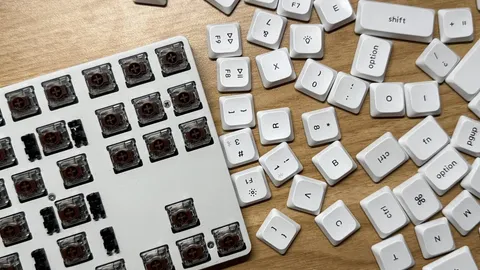
Almost any working keyboard registers key presses well enough for gaming. What a gaming keyboard changes is comfort, layout and how long it lasts.
Size. Full-size keyboards include a number pad. Tenkeyless (TKL) boards drop it, which frees about 8cm of desk for the mouse. 75% boards also tighten the spacing, and 60% boards remove the arrows and function row, which move to a second layer. Smaller layouts are popular for shooters because they give the mouse more room.
| Layout | Keys removed | Good for |
|---|---|---|
| Full-size | None | MMOs, sims, number entry |
| TKL | Number pad | Most gamers |
| 75% | Number pad, tighter spacing | Compact desks that still need arrows |
| 60% | Number pad, arrows, function row | Maximum mouse space |
Switches. Linear switches press smoothly with no bump and are the most popular for gaming. Tactile switches have a small bump that helps with typing. Clicky switches add an audible click. It is a preference, not a performance difference.
Hot-swap sockets. A hot-swappable keyboard lets you pull switches out and push new ones in without soldering. Keychron’s V3 is an example of a budget board with hot-swap sockets and support for QMK and VIA remapping. It is the most useful feature at the budget end, because it lets you change switches later without buying a new keyboard.
Features worth paying for. A detachable USB-C cable, PBT keycaps that resist shine, and onboard memory for key remaps. Features to ignore: RGB effects as a reason to buy, and “gaming” macro keys you won’t use.
Analog and magnetic switches, which register a press at an adjustable depth, are a newer option on some high-end keyboards. They help most in competitive shooters and add cost.
Headset and audio: wired or wireless, open or closed, and the microphone
Comfort comes first with audio, because you will wear it for hours. After that, the choices are connection, earcup design and microphone.
Wired or wireless. Wired headsets cost less for the same sound quality and never need charging. Wireless headsets with a 2.4GHz USB dongle are fine for gaming. Bluetooth-only headsets are not, because of delay and reduced quality when the microphone is in use.
Closed-back or open-back. Closed-back earcups block outside noise and keep sound in, which suits shared rooms and streaming. Open-back headphones sound more spacious and run cooler but leak sound both ways.
Surround. A headset has two speakers, so 7.1 surround on a headset is software processing. Most competitive games already create positional audio for stereo headphones, so a second surround effect on top can make directions harder to judge. Use the game’s own headphone mode.
Microphone. A headset boom mic is convenient. A separate USB desk microphone sounds clearer for streaming or recording. XLR microphones sound best but need an audio interface.
Headset or headphones plus a mic. Good headphones with a separate microphone often sound better for the money than a gaming headset at the same price. A headset is simpler and keeps everything in one cable.
Controllers on PC
Controllers suit racing games, action games, platformers and anything designed for a gamepad first. The main question on PC is compatibility.
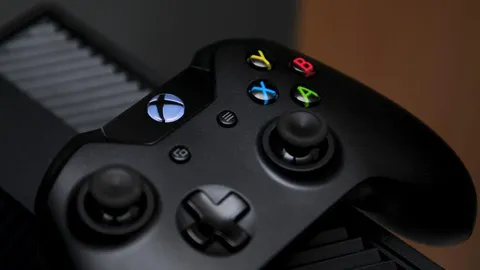
Xbox controllers use XInput, the controller standard built into Windows, so they work in almost every PC game without setup. Microsoft’s current controller connects by Bluetooth, USB-C or the Xbox Wireless Adapter.
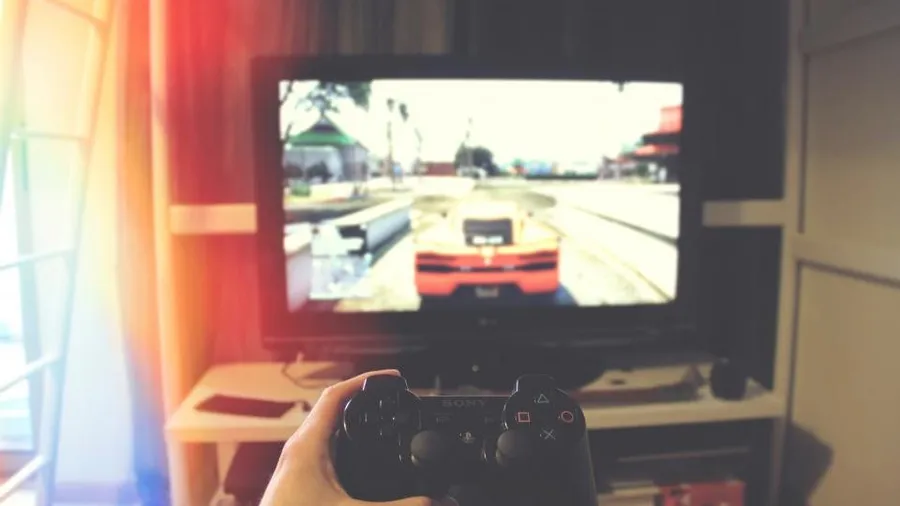
PlayStation controllers work in most games through Steam Input, Steam’s system for translating any controller into inputs a game understands. Some PC games support the DualSense’s special triggers and vibration directly, usually over USB.
Third-party controllers are often cheaper and can include Hall effect sticks, which use magnets in place of the contact parts that wear out and cause stick drift. Check that a model supports XInput or Steam Input before you buy.
Pro controllers with back paddles let you jump, dodge or reload without taking a thumb off the right stick. They are useful in action and shooter games, and expensive.
Streaming gear: webcams and microphones
If you stream or make videos, the order of priority is audio, then lighting, then camera. Viewers tolerate a plain image much more readily than poor sound.
Microphone. A USB microphone is the simplest upgrade over a headset mic. Dynamic microphones pick up less room noise than condenser microphones, which helps in untreated rooms.
Lighting. A soft light in front of you, slightly above eye level, improves almost any webcam more than a camera upgrade does.
Webcam. 1080p at 30 or 60 frames per second is plenty for a facecam on most platforms. A larger sensor helps in dim rooms. 4K webcams matter mainly if you crop the image heavily.
How do you match gear to the games you play?
The games you play most should decide where the money goes. A strategy player and a competitive shooter player can spend the same amount on very different setups.
| Main games | Spend more on | Can save on | Why |
|---|---|---|---|
| Competitive shooters (Valorant, CS2, Fortnite) | High refresh monitor, light mouse, large pad | Keyboard extras, surround features | Aim and motion clarity decide fights |
| Single-player action and RPGs | Monitor contrast and resolution, controller | Mouse weight, polling rate | Image quality and comfort matter more than speed |
| MMOs and MOBAs | Mouse with side buttons, comfortable keyboard | Very high refresh rates | Many keybinds and long sessions |
| Racing and flight | Wheel or stick, monitor size | Mouse and keyboard | The controller is the main input |
| Strategy and simulation | Large or high-resolution monitor, keyboard | Mouse weight, headset features | Lots of on-screen detail and hotkeys |
| Streaming or recording | Microphone, lighting | Monitor beyond 144Hz | Viewers notice audio first |
If you play a mix, set up for the genre where gear makes the biggest difference, which is usually competitive shooters, and accept a reasonable compromise elsewhere.
Comfort and positioning
Gear that is comfortable for one match can hurt over a four-hour session. How it sits on the desk matters as much as which model you buy.
Mouse and keyboard height. Your forearms should be roughly level with the desk and your shoulders relaxed. A keyboard with its feet flipped up raises the wrists; many players are more comfortable with the feet down.
Mouse position. A smaller keyboard lets the mouse sit closer to your body, so your arm isn’t reaching to the side. That is one of the real benefits of tenkeyless and smaller layouts.
Wrist rests. A palm rest in front of the keyboard supports the heel of the hand while you pause. Rest on it between bursts of typing rather than pressing your wrists into it while you play.
Headset fit. Clamp force and weight decide comfort. If a headset presses on your glasses arms or the top of your head after an hour, it is the wrong headset, whatever it sounds like. Swappable ear pads in fabric run cooler than leatherette.
Monitor height. Set the top of the screen at or slightly below eye level so your neck stays neutral. A monitor arm makes this easier if the stand doesn’t adjust far enough.
How long does gaming gear last?
Knowing how gear wears out helps you avoid replacing things that still work, and spot the failures that are worth fixing.
| Item | Common wear | Signs it needs replacing |
|---|---|---|
| Mouse | Switches double-clicking, worn feet, scroll wheel | Unwanted double clicks, scratchy glide even on a clean pad |
| Mouse pad | Surface wear in the centre, edges peeling | Uneven glide across the pad, base no longer grips |
| Keyboard | Shiny keycaps, a failing switch | Keys that repeat or miss presses |
| Headset | Ear pads, headband padding, cable | Flaking pads, crackling audio when the cable moves |
| Controller | Stick drift, worn trigger buttons | Movement with the sticks centred |
| Monitor | Backlight dimming, OLED burn-in | Static images remaining visible |
Many of these have cheap fixes. Mouse feet, ear pads and keycaps are sold as replacement parts for popular models, and a hot-swappable keyboard can have a faulty switch replaced in a minute. A controller with Hall effect sticks avoids the most common cause of drift.
Firmware updates from the manufacturer’s software can also fix connection drops and sensor problems, so check for one before deciding a device is faulty.
Buying used or refurbished
Used and refurbished gear can be good value, with some categories safer than others.
- Safest: monitors (check for dead pixels on arrival), keyboards, and controllers from reputable sellers with a return window.
- Check carefully: wireless mice and headsets, because battery capacity falls with age and replacement batteries are often hard to fit.
- Usually avoid: ear pads and mouse pads, for hygiene, unless you plan to replace the pads.
- Prefer manufacturer-refurbished listings over private sales, since they typically come with a warranty.
Test anything used within the return window: every button, both stick axes on a controller, every key on a keyboard, and the full screen on a monitor.
Which specs are mostly marketing?
Several headline specs sound important and rarely change anything. Knowing them saves money.
| Spec | Why it rarely matters | What to check instead |
|---|---|---|
| Mouse max DPI (26K, 44K) | Nobody plays above a few thousand DPI | Shape, weight, sensor reputation |
| Virtual 7.1 surround | It is software on two speakers | Comfort and the game’s own audio |
| Monitor “1ms” response time | Measured in the most favourable test | Independent motion reviews, panel type |
| Keyboard “gaming” macro keys | Rarely used | Layout and build |
| RGB lighting | Affects looks only | Everything else |
| 8000Hz polling | Small gain, higher CPU and battery use | A stable 1000Hz |
None of these is a reason to avoid a product. They just shouldn’t be the reason to buy one.
Check the exact model before you buy
Gaming gear is often sold in several versions under almost the same name, and the differences matter.
Revisions. Many products come in a first version, a “V2” or “Pro” version, and sometimes a later refresh, with different sensors, weights or connections. Make sure the listing’s model number matches the one you researched, not just the product name.
Variants on one listing. Retail pages often group colours, switch types, sizes and bundles under one product. A keyboard page can default to a switch you didn’t want, and a racing wheel page can default to a bundle with extra parts. Check the selected option before you check out.
Regional versions. Keyboards come in different physical layouts, such as US ANSI with a wide Enter key and ISO with a tall one, plus language-specific legends. Controllers and headsets sometimes have console-specific versions. Buy the version for your region and platform.
Warranty and seller. Buy from the manufacturer or a retailer that handles returns itself. Unknown third-party sellers can ship grey-import units that the manufacturer won’t cover under warranty.
Timing. New models tend to push the previous generation’s prices down. The older model is often the better value if the changes don’t matter to you.
Buying checklist
Before you order any piece of gaming gear, check the following:
- Fit: measure your hand, your desk depth and width, and the space the item needs.
- Compatibility: the right ports and cables for your PC, and a monitor your graphics card can drive.
- Connection: wired or 2.4GHz wireless for anything you game with; not Bluetooth.
- Comfort over hours: weight, clamp force, keyboard height and wrist position.
- Returns: buy from a retailer with an easy return window, since fit is personal.
- Software: whether the device works without its companion app running in the background.
- Specs that matter: the ones in the sections above, not the biggest number on the box.
New gear can only show what your PC produces. If games run poorly, our PC gaming performance guide covers frame rate and latency, and for crashes or errors, start with the PC game troubleshooting guide.