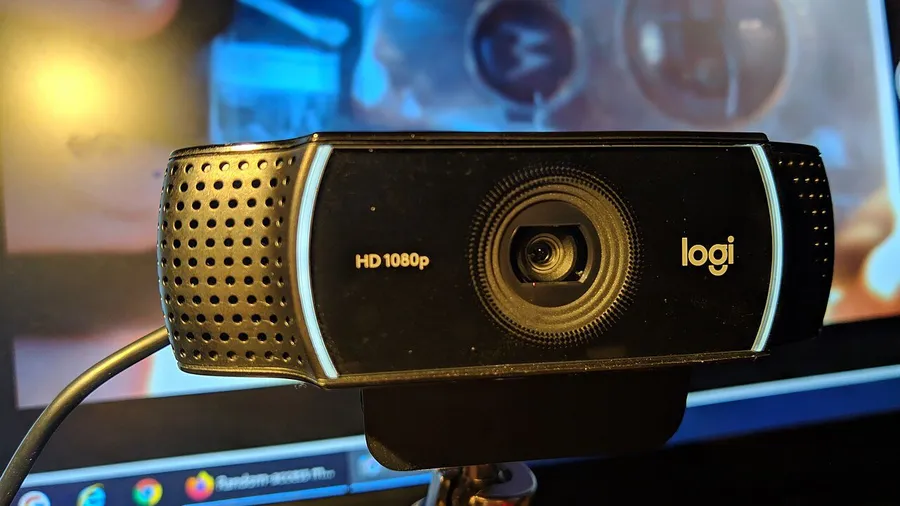
The facecam is a small corner of your stream, but viewers notice when it looks muddy. Here’s what to look for, and the fixes that matter more than the camera.
Specs that matter
- 1080p at 60fps: the practical target for streaming. 60fps looks noticeably smoother in a facecam than 30fps. Check that the camera can do 60fps at the resolution you’ll actually use.
- Sensor size and low-light performance: a bigger sensor handles dim rooms better. This is the main difference between budget and premium webcams, even when the resolution is the same.
- Field of view: about 78° is typical for a desk facecam. Wider cameras show more of your room, which isn’t always what you want.
- Manual controls: exposure, white balance and focus that you can lock stop the image from pulsing or refocusing mid-stream.
Lighting beats the camera
A budget webcam with good light looks better than an expensive one in a dark room.
- Put a soft light in front of you, slightly above eye level. A key light or ring light works, and even a lamp aimed at a white wall helps.
- Don’t sit with a window behind you. The camera will expose for the window and leave your face dark.
- Match color temperature. Mixing warm room bulbs with cool daylight gives odd skin tones.
Settings to lock in OBS
- Set the webcam’s resolution and FPS manually in the video capture device properties.
- Turn off auto-exposure if your camera allows it, so the image doesn’t flicker as the game’s light hits your face.
- Use auto white balance off with a fixed value once your lighting is set.
When to skip the webcam
If you already own a recent mirrorless camera or a good phone, capture software and a capture card or app can turn it into a much better facecam than most webcams.
Upgrade Your Stream Audio